

really well made, way easier mod than others
Works great. Has a beautiful and simplistic design.

Notes:
Arduino Mega 2560
Battery Module (when you put in on)
Buttons
Bus timings
Cart Reader Shield
Clock Generator Module
Config switches
EPROM adapter and write function
File-browser
Game Boy
Game Boy Advance
Game Cartridges
N64
NES
Nintendo Power SF Memory
OLED Module
Power Supply
Serial Monitor
Super Nintendo
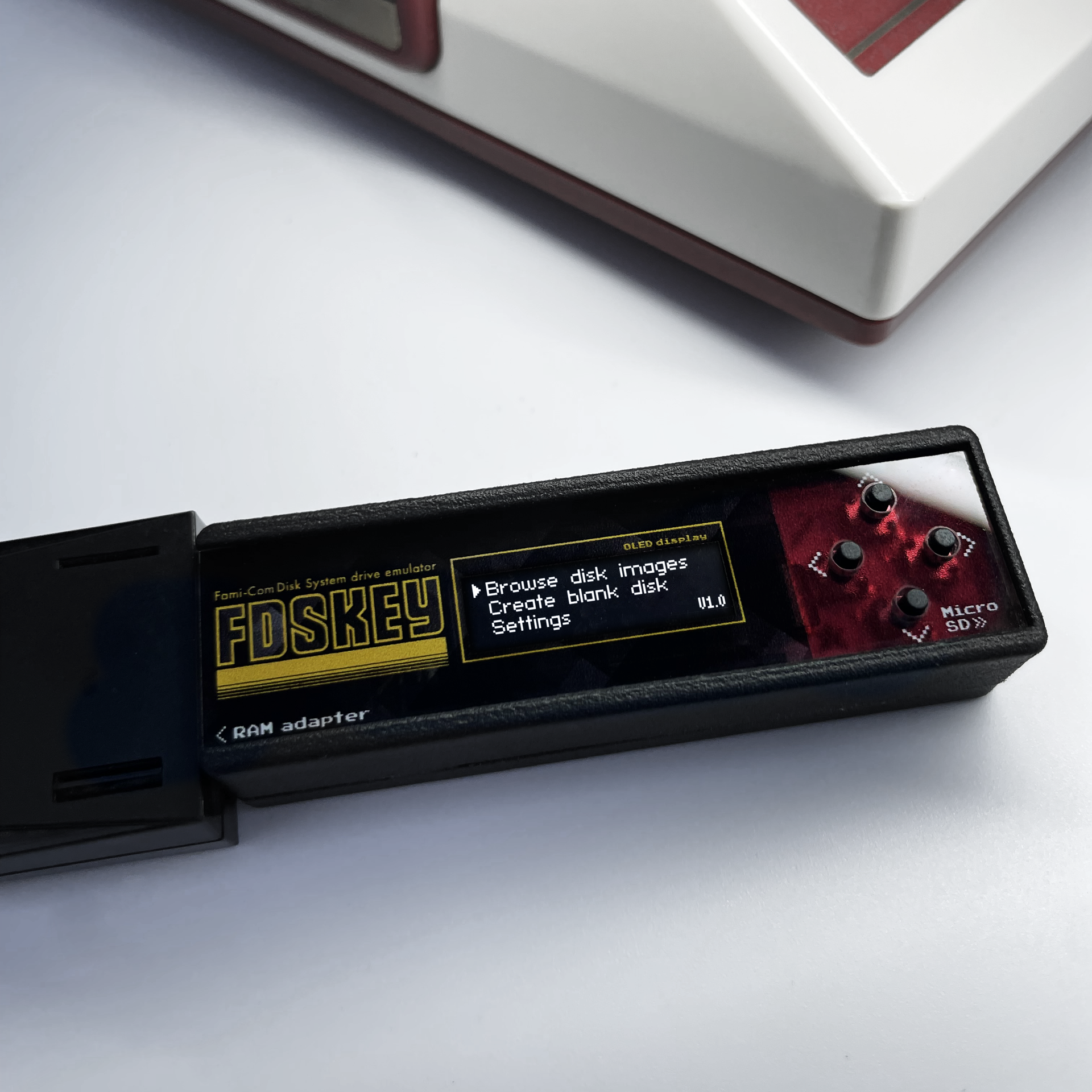
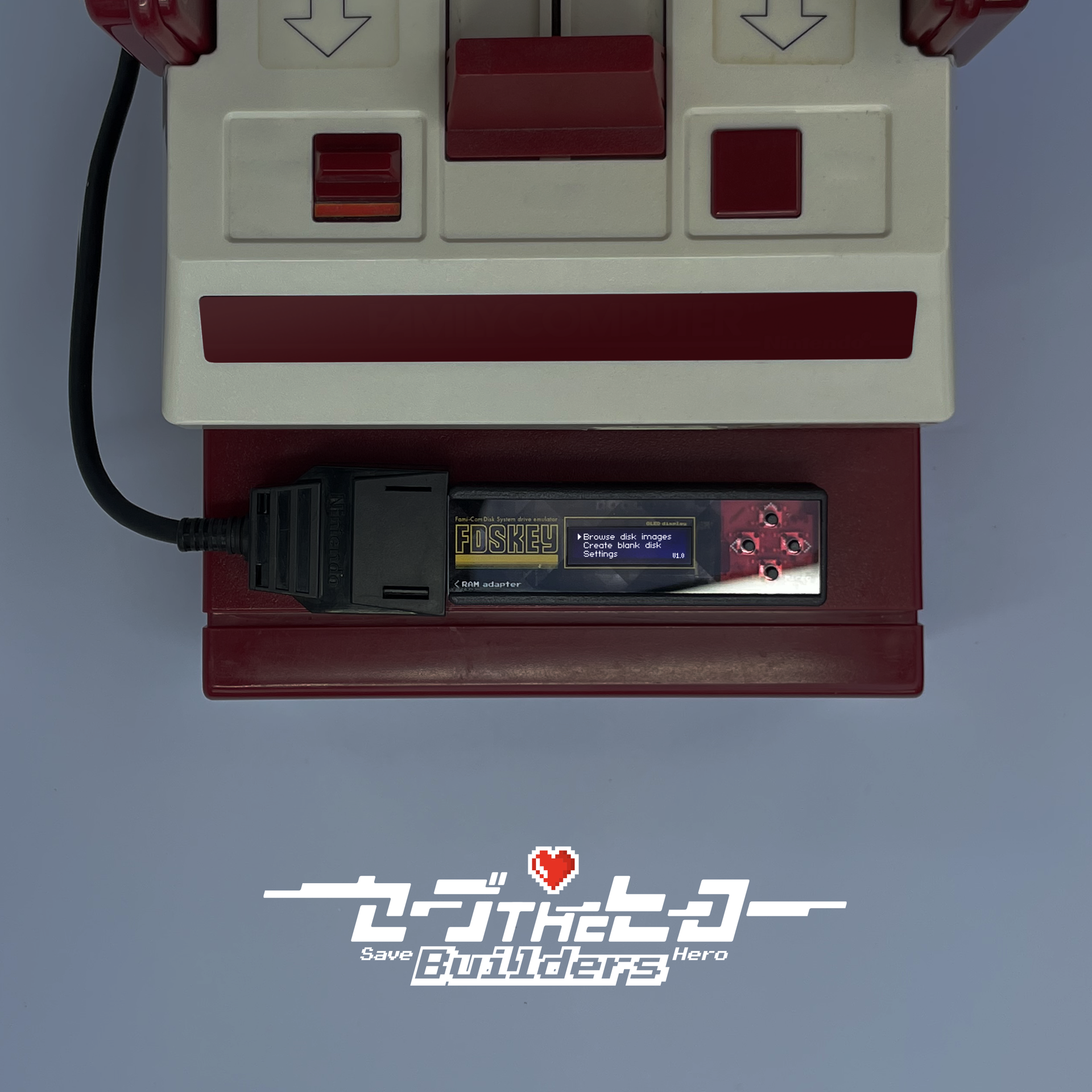
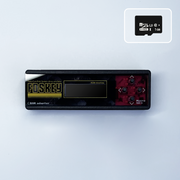
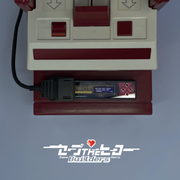
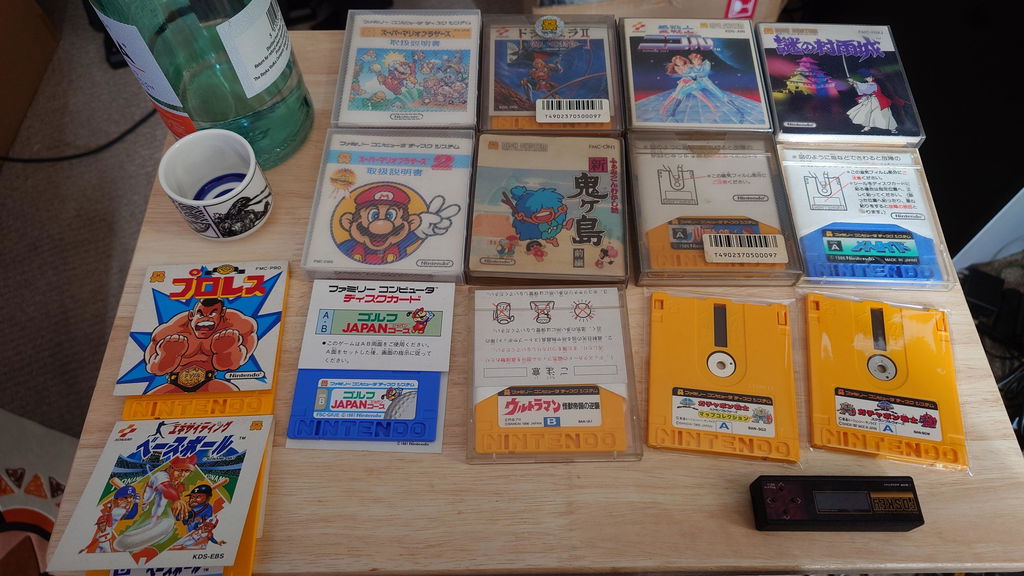
Fami-com Disk System drive emulator featuring a sleek OLED display
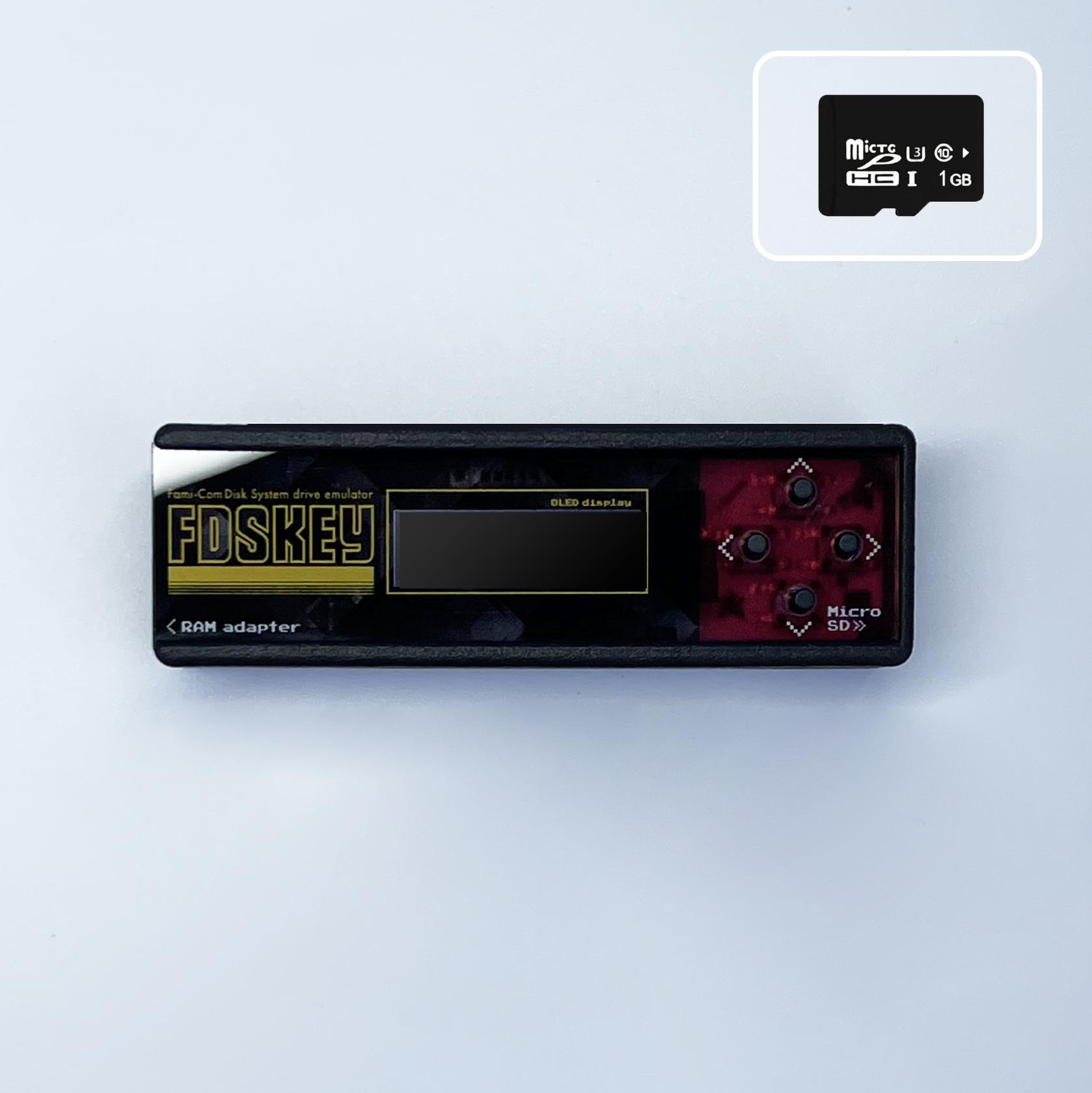
Micro SD card included (1gb). PCB have enig gold finger.
*This is an open source product designed by ClusterM
Production cooperation JL.Lab
How you can use it:
Requirements:
Now you can navigate through the FDSKey interface using the buttons. Left button usually means back, right button usually means OK and up/down are used to select something (file, disk side, etc.) Also, you can long press the left button in the file browser to directly return to the main menu from a subfolder, and long press the right button to open the file properties menu.

WARNING: when a game writes some data to a virtual disk (i.e., saves game progress) don't turn off your Famicom power until the updated ROM has been saved to the SD card. Wait a second for it or eject a virtual disk (left button). A saving message will be displayed, do not turn off power while this message is visible.
簡単な使い方はレビューをご参照下さい。See review below for easy usage(Japanese)
レビュー動画はこちら Video(Japanese)
Firmware Updates:
You can always download the latest version at https://github.com/ClusterM/fdskey/releases
Remember, you can update the firmware by putting fdskey.bin on your SD card and holding all four buttons on power-on.
Please refer to GitHub for detailed usage and configuration.
LICENSE:
GNU General Public License v3.0
Fami-com Disk System drive emulator featuring a sleek OLED display
Micro SD card included (1gb). PCB have enig gold finger.
*This is an open source product designed by ClusterM
Production cooperation JL.Lab
How you can use it:
Requirements:
Now you can navigate through the FDSKey interface using the buttons. Left button usually means back, right button usually means OK and up/down are used to select something (file, disk side, etc.) Also, you can long press the left button in the file browser to directly return to the main menu from a subfolder, and long press the right button to open the file properties menu.
WARNING: when a game writes some data to a virtual disk (i.e., saves game progress) don't turn off your Famicom power until the updated ROM has been saved to the SD card. Wait a second for it or eject a virtual disk (left button). A saving message will be displayed, do not turn off power while this message is visible.
簡単な使い方はレビューをご参照下さい。See review below for easy usage(Japanese)
レビュー動画はこちら Video(Japanese)
Firmware Updates:
You can always download the latest version at https://github.com/ClusterM/fdskey/releases
Remember, you can update the firmware by putting fdskey.bin on your SD card and holding all four buttons on power-on.
Please refer to GitHub for detailed usage and configuration.
LICENSE:
GNU General Public License v3.0